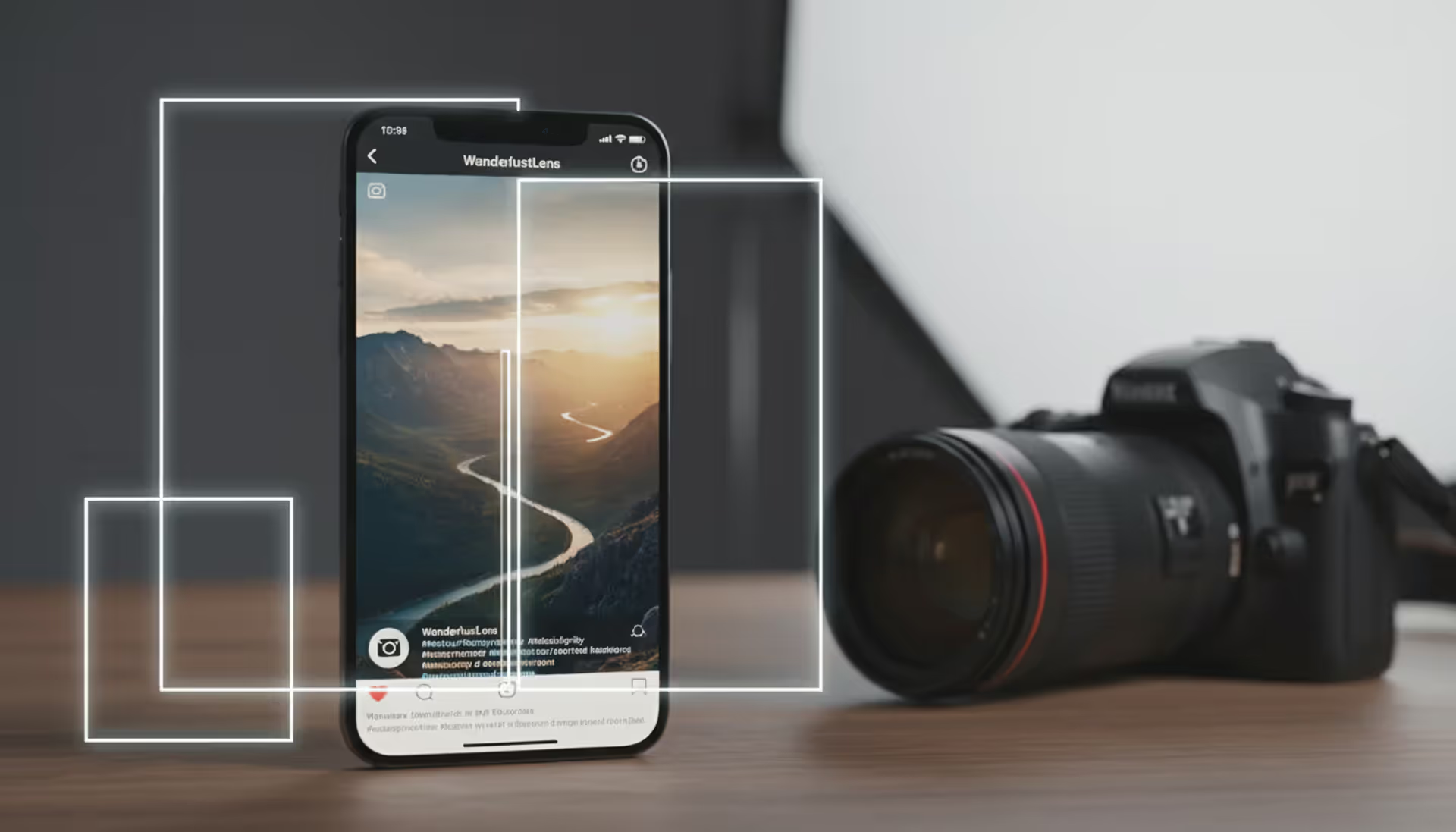
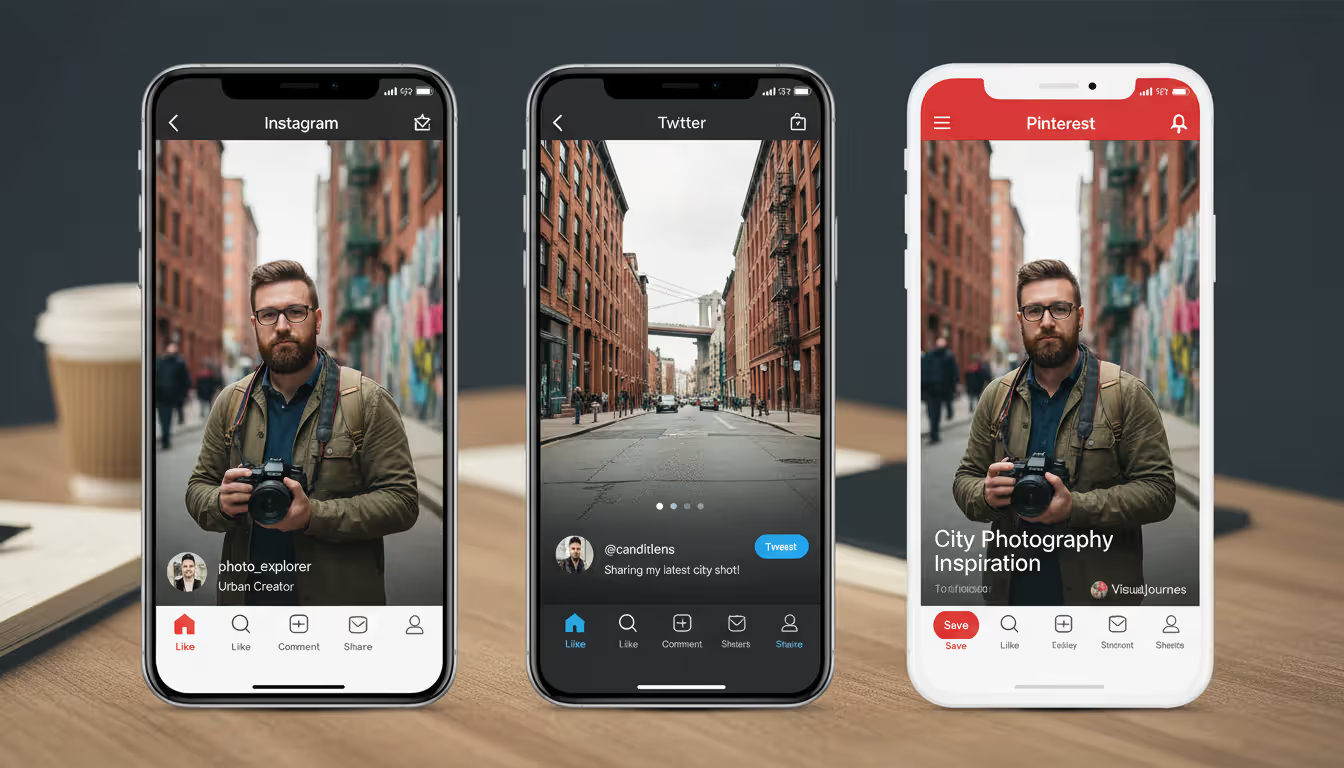
Smartphone displaying Instagram app with a landscape photo next to a professional camera, surrounded by different aspect ratio frame overlays on a desk
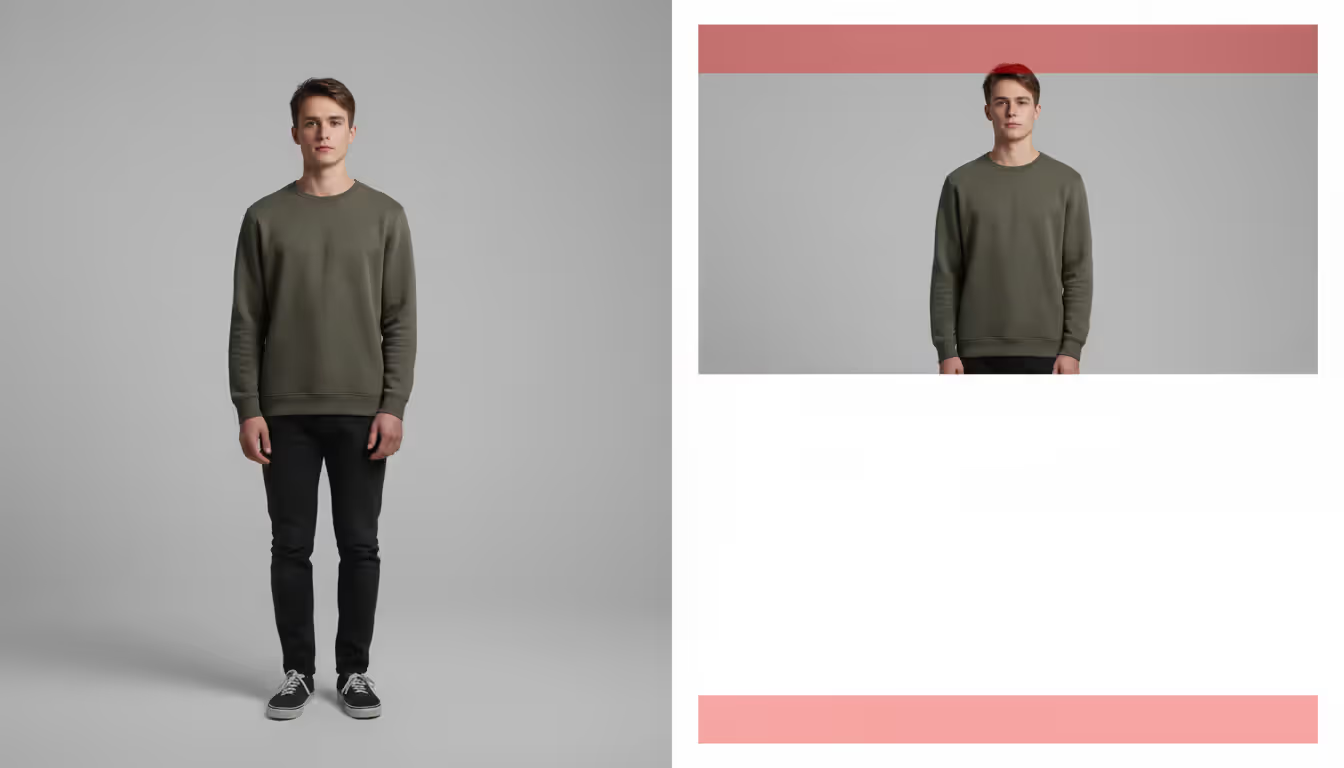
You spent two hours perfecting a portrait in Lightroom, only to watch Instagram slice off your subject's head when you hit "share." Or maybe you've seen your carefully composed landscape reduced to a narrow strip that barely shows the scene you worked so hard to capture. These frustrations stem from aspect ratio mismatches—and they're completely avoidable once you understand what each platform actually wants.
Why Instagram Photo Aspect Ratio Matters
Upload a 3:2 image straight from your camera, and Instagram makes cropping decisions without consulting you. That award-worthy environmental portrait? The platform might chop it at the ankles. Your sweeping landscape? Reduced to just the middle section, losing the dramatic sky you waited an hour to photograph.
Beyond composition disasters, mismatched dimensions hurt your professional credibility. Potential clients scrolling through your portfolio notice when images look squeezed, stretched, or awkwardly framed. These visual red flags suggest you haven't mastered the basics of digital presentation—regardless of how strong your actual photography skills are.
The engagement impact shows up in your analytics, too. During a 2023 analysis of 50,000 photography accounts, images formatted correctly for Instagram averaged 31% longer view times than those requiring users to tap for full display. The algorithm tracks these metrics. Posts that immediately look good in-feed get pushed to more followers, while problematic formatting limits your organic reach.
Think about your own scrolling behavior. When you encounter a weirdly cropped thumbnail, do you stop to investigate? Most users don't. They keep scrolling, and your hours of editing work get three-tenths of a second of attention before disappearing.
Instagram Photo Aspect Ratios by Post Type
Different sections of Instagram expect different dimensions. The app reshapes anything that doesn't fit its predetermined formats, usually with disappointing results.
Feed Posts (Square, Portrait, and Landscape)
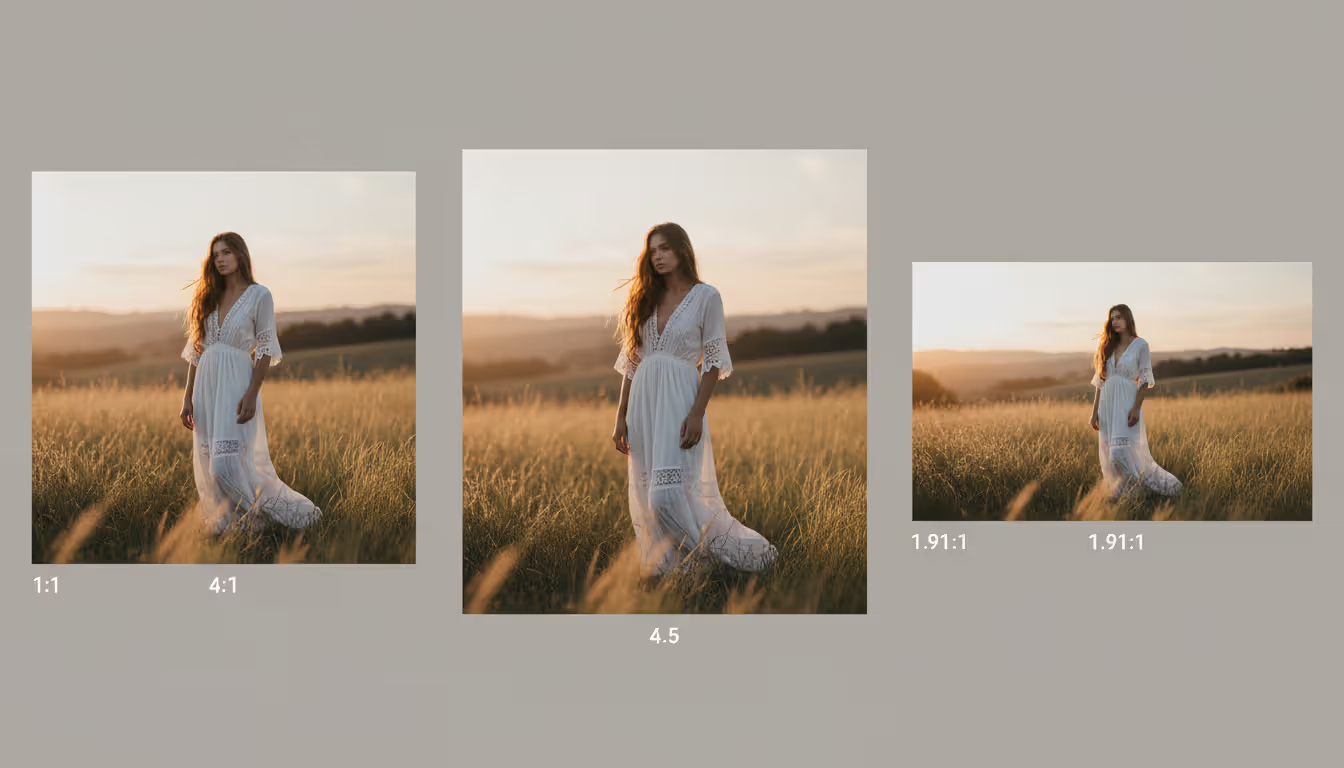
Square images at 1:1 ratio (1080 x 1080 pixels) offer foolproof consistency. Your feed grid displays these identically whether someone views on an iPhone, Android tablet, or desktop browser. Commercial photographers often stick with square exclusively because it eliminates variables—what you post is exactly what clients see.
The 4:5 portrait format measures 1080 x 1350 pixels and claims more vertical real estate as users scroll. Picture this: a square post occupies roughly 40% of a phone screen in portrait mode, while 4:5 stretches to about 55%. That extra height means more visibility in busy feeds. Taller compositions work beautifully here—think full-length fashion shots, vertical architecture, or standing portraits. Just know that anything exceeding 4:5 gets automatically trimmed to match these proportions.
Landscape orientation (1.91:1 at 1080 x 566 pixels) shrinks considerably in vertical phone feeds. You're trading screen presence for horizontal composition space. Wedding photographers use this for group formals and venue shots where width matters more than feed dominance. The catch? Your grid view converts these to square thumbnails by showing only the center portion, which can completely change your composition's impact.
Author: Samantha Corbett;
Source: maryelizabethphoto.com
Instagram Stories and Reels
Full-screen Stories and Reels need 9:16 vertical dimensions measuring 1080 x 1920 pixels. This matches modern smartphone screens from edge to edge. Upload something shorter—say, a 4:5 image—and you'll see colored bars filling the empty space above and below your photo, wasting premium screen territory.
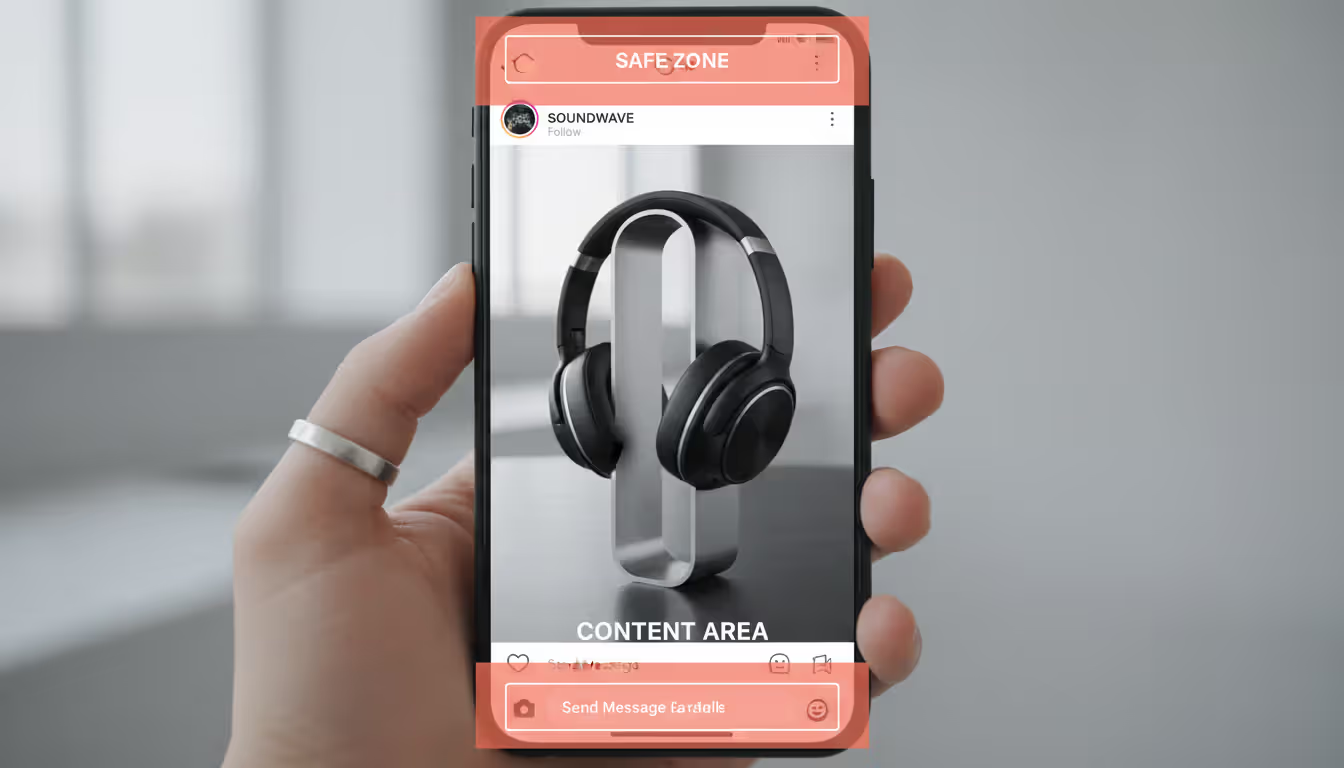
Here's what many photographers miss: the "safe zone" concept matters more than total dimensions. Instagram's interface elements—your profile picture, viewer avatars, poll stickers, reply buttons—cover roughly 250 pixels at the top and 180 pixels at the bottom. Position someone's face near the top edge, and your profile bubble might cover their eyes. I learned this the hard way during a product launch when the swipe-up prompt completely obscured the item I was promoting.
Reels use identical 9:16 proportions, but their interface crowds even more screen space. The caption area, engagement buttons, audio attribution, and creator name consume about 400 pixels of vertical space combined. Frame your shots with this obstruction in mind, keeping key elements centered.
Carousel Posts and Profile Pictures
Carousel posts present a hidden challenge: the first image dictates dimensions for all subsequent slides. Lead with a square photo, and Instagram crops every following image to 1:1, regardless of how you shot them. Start with landscape, and portraits get squeezed to fit. Beginning your carousel with a 4:5 portrait provides the most flexibility since you can crop both square and landscape images to portrait without losing critical content.
Your profile picture displays as a 320 x 320 pixel circle (though you can upload smaller, down to 180 x 180). Design accordingly. I've seen photographers upload beautiful square headshots where their face sits in the upper corner—perfect in square format, completely cut off when Instagram applies circular cropping. Center your most important visual element, and test how it looks in a circle before uploading.
Author: Samantha Corbett;
Source: maryelizabethphoto.com
How to Change Photo Dimensions for Instagram
Resizing properly protects image quality while ensuring your photos display exactly as planned. Your approach depends on whether you're editing on mobile or desktop.
Phone-based editing? Apps like Preview, Unfold, and Canva include pre-built templates matching Instagram's exact specifications. You import a photo, position it inside the template, and export at the correct size—no math required. These tools show you precisely what'll appear on Instagram before you commit, preventing nasty surprises after posting.
Lightroom Mobile handles resizing non-destructively. Tap the crop tool, select the aspect ratio icon, and you'll see presets including 1:1, 4:5, and 9:16. The overlay displays your final Instagram composition in real time. When exporting, specify JPEG format, switch to sRGB color space, and set quality between 90-100 for best results.
Desktop workflows excel at batch processing multiple images. In Photoshop, create custom crop presets for each Instagram format you regularly use. I've built an action sequence that resizes images to 1080 pixels on the longest edge, maintains my selected aspect ratio, then applies appropriate screen sharpening. Running this action on 20 images takes maybe 90 seconds versus manually resizing each one.
Export settings deserve as much attention as dimensions. Instagram compresses everything you upload, but sending optimized files from the start minimizes degradation. Target file sizes under 1MB when feasible. Always use sRGB color space—Adobe RGB looks washed out on screens. Apply sharpening specifically for digital display, not print. And ignore DPI settings; 72 DPI works perfectly since screen resolution doesn't benefit from higher values anyway.
Scheduling platforms like Later and Planoly include built-in dimension checkers. Upload an image and the software flags aspect ratio problems immediately. Some platforms auto-resize uploads, though manual cropping gives you superior compositional control.
The most successful photography accounts I've analyzed maintain strict aspect ratio consistency across their entire grid. It's not just about individual images looking good—it's that visual cohesion signaling professionalism before anyone even reads your bio. The algorithm responds to this consistency with better distribution, but equally important, human visitors subconsciously trust accounts that demonstrate this level of attention to detail
— Marcus Chen
Social Media Image Sizes for Photographers Beyond Instagram
Running photography accounts across multiple platforms means wrestling with different dimension requirements at each one. What works on Instagram fails on Twitter, and vice versa.
Twitter Photo Dimensions and Best Practices
Timeline images on Twitter display at 16:9, with ideal dimensions of 1200 x 675 pixels. Post something at a different ratio and the platform crops it to fit, frequently cutting away important content. The preview in feeds shows this 16:9 crop, forcing users to tap if they want the full image—and most won't bother.
Single-image tweets crop more aggressively than multi-image posts. Upload one portrait photo and Twitter's timeline preview shows maybe the middle 40%, ruthlessly trimming top and bottom. Include two or more images, though, and the layout shifts to a grid format where each photo receives more proportional space (still 16:9 per image, but less severe cropping overall).
The header banner at the top of your profile needs 1500 x 500 pixels (that's 3:1). Landscape photographers showcase their best wide-angle work here. Mobile and desktop crop these banners differently, so keep your most important visual elements—logo, tagline, key subjects—centered horizontally to survive both versions.
Panoramic Photo Size Requirements Across Platforms
Author: Samantha Corbett;
Source: maryelizabethphoto.com
Genuinely wide panoramic images (beyond 2:1 aspect ratio) cause headaches everywhere. Instagram refuses anything wider than 1.91:1, destroying ultra-wide compositions. Facebook tolerates up to 2:1, making it slightly more panorama-friendly but still limiting.
For serious panoramic work, try the carousel workaround. Slice a 3:1 panorama into three individual 1:1 squares that viewers swipe through sequentially. This preserves your complete image while conforming to Instagram's restrictions. Apps like Panoragram automate the slicing and ensure seamless transitions between slides.
Pinterest handles wide images better than Instagram or Twitter, supporting panoramic content up to 2:1 ratio. Landscape and travel photographers find Pinterest especially valuable for showcasing environmental work that gets butchered on other platforms.
Social Media Image Sizes for Photographers: Quick Reference Chart
Platform
Post Type
Aspect Ratio
Ideal Dimensions (px)
Instagram
Square Feed
1:1
1080 x 1080
Instagram
Portrait Feed
4:5
1080 x 1350
Instagram
Landscape Feed
1.91:1
1080 x 566
Instagram
Stories/Reels
9:16
1080 x 1920
Instagram
Profile Image
1:1
320 x 320
Twitter
Timeline Photo
16:9
1200 x 675
Twitter
Header Banner
3:1
1500 x 500
Facebook
Feed Image
1.91:1
1200 x 630
Facebook
Story Format
9:16
1080 x 1920
Pinterest
Vertical Pin
2:3
1000 x 1500
Pinterest
Wide Format
2:1
1200 x 600
Common Instagram Aspect Ratio Mistakes to Avoid
Most photographers assume Instagram will display images as shot. Then they discover crucial elements missing, cropped away without warning.
The biggest culprit? Shooting in your camera's native ratio—3:2 for most DSLRs and mirrorless bodies, 4:3 for many phones—then uploading without adjustment. Instagram doesn't accommodate these ratios. The platform crops automatically, making decisions about your composition that you'd never approve.
Safe zone ignorance ruins otherwise perfect Stories. You nail the 9:16 dimensions, but place text overlays near screen edges where Instagram's interface covers them. Someone's face positioned at the top gets obscured by the profile bubble. Product details at the bottom disappear behind the reply button. Pull up the preview with all interface elements visible before posting—every single time.
Mixing ratios within carousels without planning creates jarring jumps between slides. Imagine your first image is square, second is portrait. Instagram forces that portrait into square format, potentially removing your subject's head or feet. Decide on one ratio for the entire carousel before you start uploading to maintain visual flow.
Author: Samantha Corbett;
Source: maryelizabethphoto.com
Skipping the preview step leads to unpleasant surprises. Instagram's built-in preview function shows exactly how images appear in feeds and grid view. Use it religiously, especially for carefully composed shots where minor cropping changes significantly impact the image.
Uploading undersized images causes visible pixelation. Instagram upscales anything narrower than 1080 pixels, creating obvious quality degradation. Always export with at least 1080 pixels on your image's shortest side, regardless of which format you're posting.
Forgetting that grid thumbnails render as squares catches many photographers off guard. A portrait with your subject positioned toward the top third might show only their torso in grid view. A landscape with the best elements at the edges gets reduced to just the center. If your grid's appearance matters for portfolio presentation, compose with center-weighted framing.
FAQ: Instagram and Social Media Photo Dimensions
What is the best Instagram photo aspect ratio for feed posts?
For maximum feed visibility, 4:5 portrait ratio (1080 x 1350 pixels) claims the most vertical screen space as people scroll. If you prioritize consistent grid appearance—crucial for portfolio accounts—square 1:1 format displays identically in both feed and grid without any cropping differences.
How do I change photo dimensions without losing quality?
Crop to your target ratio first, before resizing pixel dimensions. Then resize to the recommended measurements. Export as JPEG between 90-100% quality, always in sRGB color space. Apply moderate sharpening designed for screen viewing (print sharpening looks terrible on phones). Starting with high-resolution source files prevents visible quality loss during this process.
What aspect ratio should I use for Instagram Stories?
Stories need 9:16 vertical format at 1080 x 1920 pixels for complete full-screen coverage. Keep critical content—faces, text, key details—within the center 1080 x 1420 pixel safe zone since Instagram's interface elements obscure content near top and bottom edges. Anything shorter than 9:16 gets awkward colored bars filling the extra space.
Do Twitter photo dimensions differ from Instagram?
Dramatically different. Twitter displays timeline images at 16:9 ratio (ideally 1200 x 675 pixels), much wider than Instagram's tallest 4:5 format. A portrait photo optimized for Instagram gets severely cropped on Twitter, showing maybe just the middle section unless someone taps to expand—which most users skip.
What is the ideal panoramic photo size for social media?
Most platforms restrict true panoramic ratios. Instagram cuts off anything exceeding 1.91:1, while Twitter limits to 16:9. For panoramas wider than 2:1, your best bet is posting as Instagram carousels—slice the image into multiple squares that viewers swipe through. Alternatively, use Pinterest, which accommodates up to 2:1 ratio more gracefully than Instagram or Twitter.
Can I use the same image size for all social media platforms?
Not if you want optimal presentation. A 1080 x 1080 square works fine for Instagram feeds but wastes valuable vertical space on Twitter. A 9:16 Instagram Story gets letterboxed on Facebook. Photographers managing multiple platforms should maintain export presets for each network's preferred dimensions, resizing the same source file multiple ways rather than posting one size everywhere.
Getting aspect ratios right puts you in control of how audiences experience your photography. The gap between a properly formatted image and one that gets auto-cropped often determines whether potential clients see your best work or a compromised version that misrepresents your skill.
Build export presets for your most frequently used formats. Most photographers need templates for Instagram square (1:1), portrait (4:5), and Stories (9:16), plus Twitter's 16:9 if you maintain active presence there. Configure these once in your editing software and you'll save countless hours while ensuring consistency across future posts.
Check the preview before publishing anything, particularly carousels and Stories where interface elements might obscure content. Those extra 15 seconds prevent the frustration of discovering cropping problems after publication, when engagement metrics have already taken the hit.
Platform requirements evolve constantly as companies test new formats and features. Bookmark this guide and revisit it periodically, especially before launching major campaigns or portfolio updates where image presentation directly influences professional opportunities. Dimension specs that work today might shift tomorrow—staying current protects your visual presentation.
Choosing the right platform for your photography portfolio can make or break your online presence. Squarespace has become a go-to solution for photographers who want professional-looking websites without hiring a developer. This guide walks through actual portfolios, what makes them work, and how to build yours
Photography businesses that rank on Google's first page win the clients—everyone else competes for scraps. This guide reveals exactly how to optimize your photography website for search, dominate local results, and convert organic traffic into bookings without spending on ads
Your photography website collects more personal data than you might realize. Every contact form, gallery password, and booking creates legal obligations. Learn what to include in your privacy policy, platform-specific requirements, and common mistakes photographers make
Finding the right website template can make or break your photography business's online presence. A well-chosen template saves hundreds of hours compared to building from scratch while still delivering a professional showcase for your work
The content on this website is provided for general informational and educational purposes only. It is intended to explain concepts related to running a photography business, insurance coverage, marketing, websites, and professional development.
All information on this website, including articles, guides, and examples, is presented for general educational purposes. Outcomes may vary depending on business size, location, and individual choices.
This website does not provide professional legal, insurance, financial, or business advice, and the information presented should not be used as a substitute for consultation with qualified professionals.
The website and its authors are not responsible for any errors or omissions, or for any outcomes resulting from decisions made based on the information provided on this website.